vmlorenzorod
Published apps
SD ReaderYour Kode becomes a USB card reader. Plug it into a computer and the microSD inside shows up as a disk: copy, delete or format, like any card reader.
What you need
A Kode Dot
A microSD card in its slot
A USB-C cable to your computer, or the Kode charging base plugged into it
What it does
The card is the screen: its real size and how full it is, read from the card
A live MB/s ring while the computer reads or writes
A Read only switch: turn it on and the computer can look at the card but never write to it
Fast eject: back to the Kode in under a second, and a warning if the cable was pulled while it was still writing
Remembers each card, so the next time it connects at once
Cable or charging base: it finds the one that goes to the computer by itself
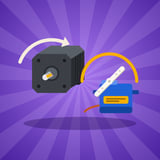
The BLUE button connects and disconnectsToolsMotorsDrive a stepper motor and a servo from your Kode Dot. Each one is a 3D model on the screen that turns just like the real one.
Servo: slide it along a ruler from 0 to 180°, then Hold it there or Release it
Stepper: six speeds each way, from 10 to 90 rpm, with Stop and Go
The angle or the rpm, live at the top
Switch motor at the bottom of the screen, with a finger or the pad
It keeps the speed and the angle for next time
Needs the Robotics module with a stepper motor (bipolar, like a NEMA 17) and/or a hobby servo (like an SG90), and 5 V: a USB-C charger, or the battery's boost.MakerStepper PianoA player piano that a stepper motor plays. Each note is a speed, so the motor sings as it spins, while the paper roll scrolls down and the keys press themselves.
What you need
A Kode Dot
The Robotics module, plugged into J3
A stepper motor (bipolar, 1.8°, like a NEMA 17) on the module's stepper terminal
5 V for the motor: a USB-C charger, or the Dot's battery boost
What it does
Plays Jingle Bells, Can-Can and Happy Birthday
Shows the motor's rpm and the song's time, live
Settings: tempo, octave, spin direction and repeat, kept for next time
The BLUE button plays and stopsCreative